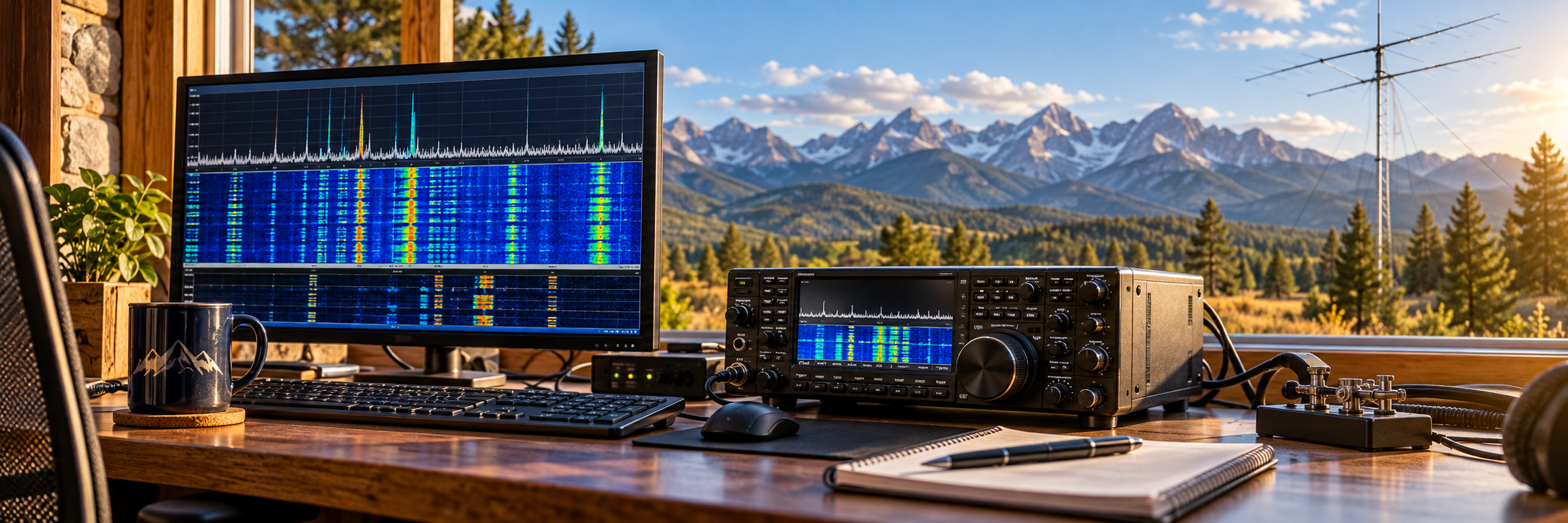
Turn radio signals into contacts, messages, maps and images
Digital radio can look complicated because every activity seems to have its own program. This beginner-friendly guide groups the software by what you want to accomplish, shows how the programs work together and gives you a practical place to begin.
Start here: watch the air without transmitting
These are the easiest tools on the page for a brand-new operator—or someone who does not have a license yet. Neither requires a radio interface or a connection to station equipment. Open them on an ordinary computer, tablet or display and start exploring live reception reports, propagation, space weather and station activity. An amateur-radio license becomes necessary only when you transmit. Click either screenshot for a large, detailed view.
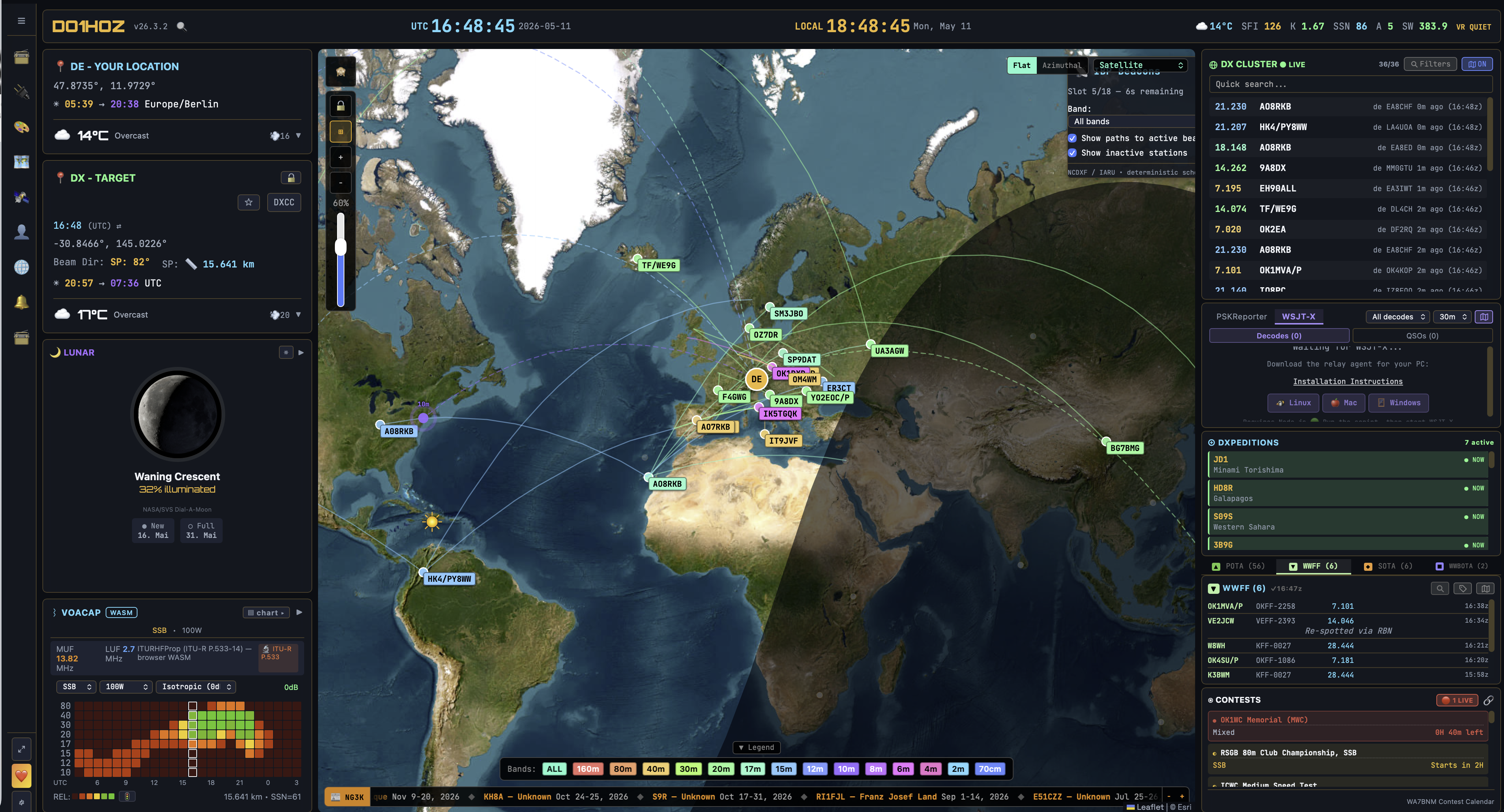
OpenHamClock FREE • OPEN SOURCEWEB APPWINDOWSmacOSLINUX
OpenHamClock is a web-based shack dashboard that brings a world map, DX-cluster spots, POTA activity, solar and space-weather readings, propagation information and station tools onto one screen. You can run it on a Raspberry Pi, spare computer, tablet or wall display and use it as a constantly updated window into amateur-radio activity—even if you are only listening and learning.
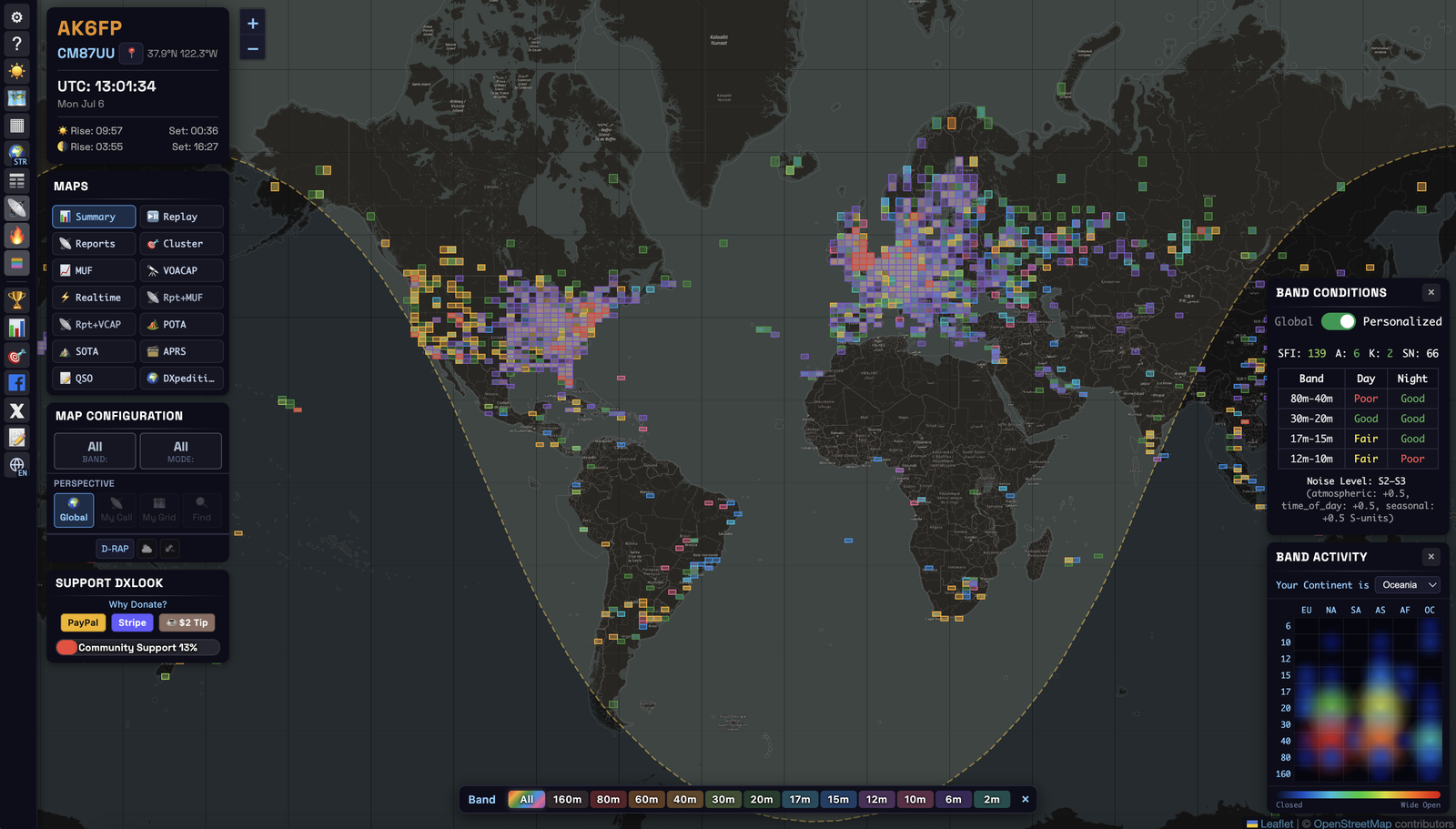
DXLook FREE • NO ACCOUNT REQUIREDWEB APPDESKTOPMOBILE BROWSER
DXLook is an interactive live HF/VHF propagation map. It combines reception reports from PSK Reporter, WSPRnet, the Reverse Beacon Network and DX clusters with band conditions, space weather, VOACAP predictions, POTA, SOTA and APRS views. Visitors can watch paths appear, filter by band or mode and learn what “the band is open” really looks like—without an account, radio or license.
What is a digital mode?
Your radio still sends ordinary radio waves. The difference is that a computer turns voice, text, callsigns, locations, pictures or telemetry into tones, then decodes the tones at the receiving end. Some modes are built for extremely weak signals; others emphasize conversation, email, mapping, images or dependable emergency traffic.
Receives and transmits the signal.
Computer audio carries tones; CAT control selects band and mode.
Software converts signals into useful information.
Maps, logging and spotting add context.
Choose a mode or tool by what you want to do
Most of the programs on this page are free. A few offer optional paid upgrades, and only a small number require a purchase after a trial. Each entry now carries a cost label so you can tell before downloading.
Receiving and exploring are excellent ways to learn. Several monitoring tools need no radio and no amateur-radio license at all. A license is required before transmitting on amateur frequencies.
The easiest way to understand the names is to group modes, software and networks by purpose. Each section below stays open so you can browse the programs, explanations and screenshots without extra clicks. Click any screenshot to open a large, detailed view.
Weak-signal contacts: WSJT-X, Decodium, MSHV and GridTracker 2
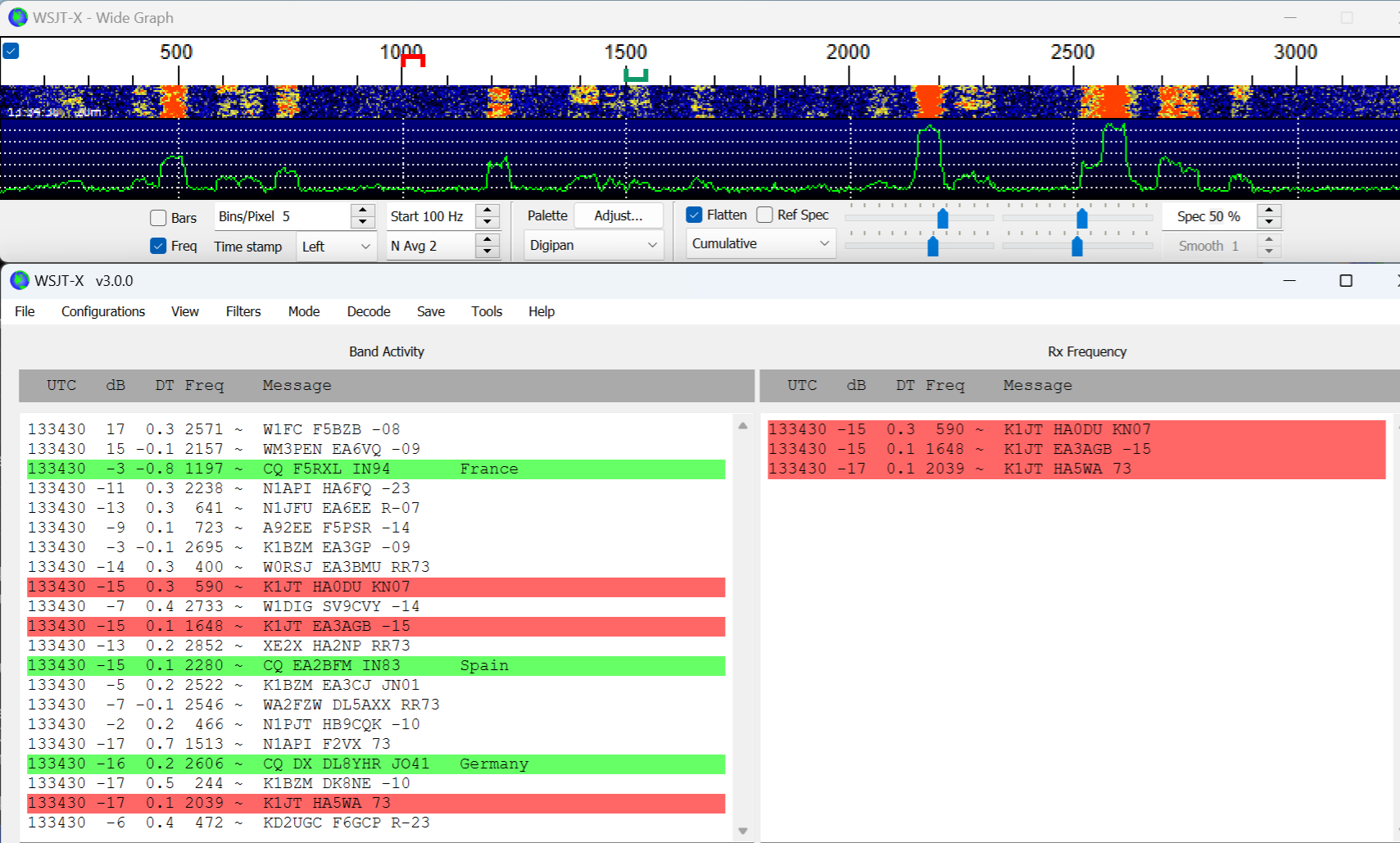
WSJT-X FREE • OPEN SOURCEWINDOWSmacOSLINUX
WSJT-X is the best-known and most widely used starting point for weak-signal digital radio. It handles FT8, FT4, WSPR, Q65, MSK144, FST4/FST4W and other modes, decoding synchronized transmissions in timed periods and guiding the short exchange needed for a valid contact.
Decodium FREE • OPEN SOURCEWINDOWSmacOSLINUXANDROID is a newer weak-signal decoding and operating application aimed at modes such as FT8-family activity. It belongs in the same workflow category as WSJT-X: watching synchronized signals, decoding callsigns and completing structured contacts.
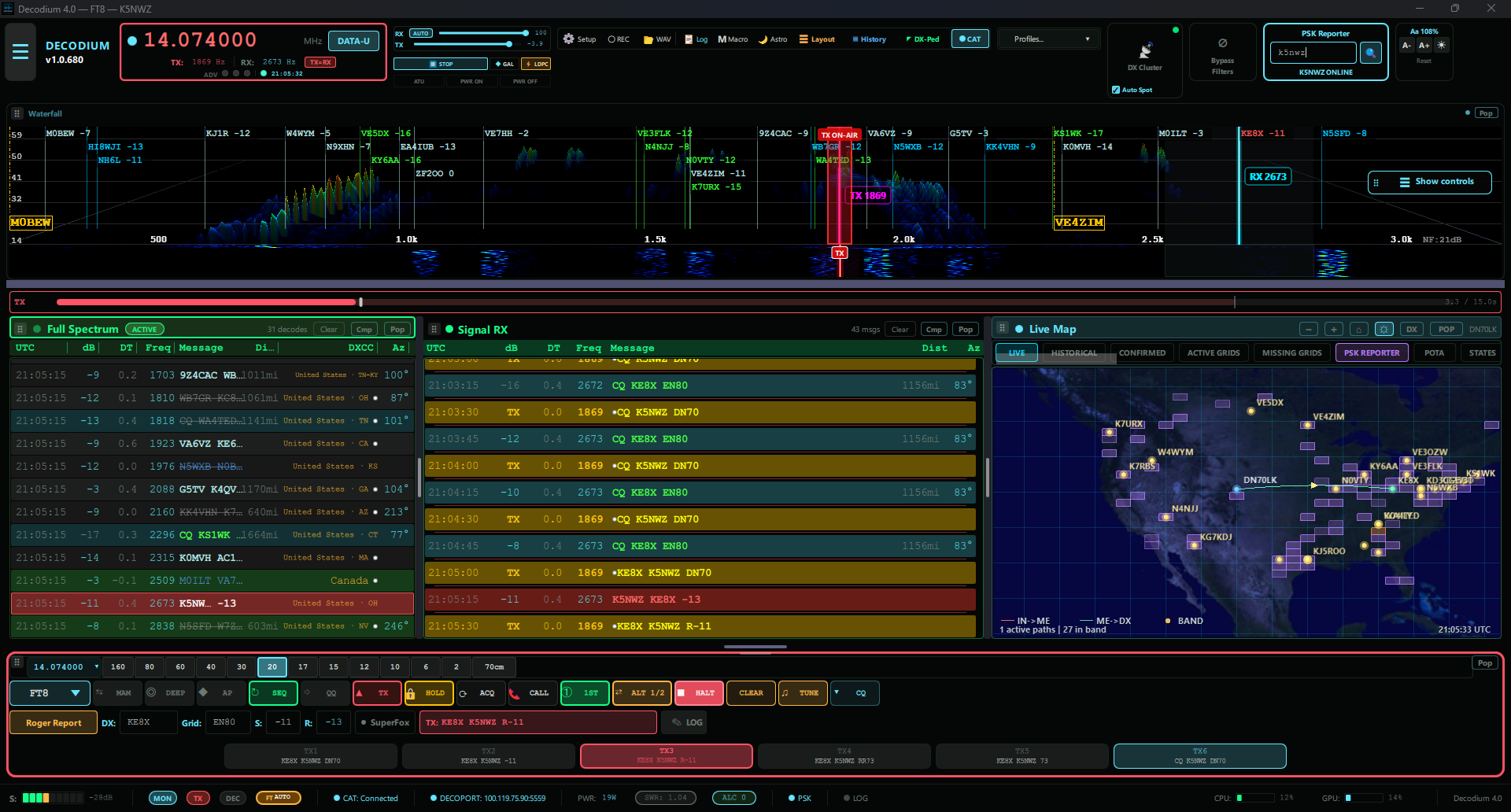
Official Decodium website and downloads ↗
MSHV 64-bit FREE • OPEN SOURCEWINDOWSLINUX is a multi-mode weak-signal program popular for FT8, FT4, MSK144 and other modes. It is especially useful for operators who want one interface covering several terrestrial, meteor-scatter and VHF/UHF weak-signal activities.
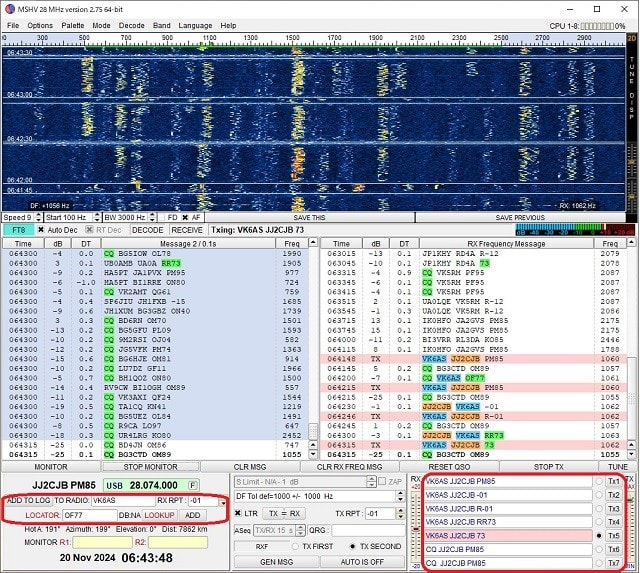
Official MSHV website and downloads ↗
PinPoint APRS FREE • INDIVIDUAL NONCOMMERCIAL USEWINDOWS is a Windows APRS client built around a detailed map, station tracking, messaging and field-ready information. It can connect through APRS-IS or compatible radios and TNCs, cache maps for offline use, and overlay NexRad radar, weather-warning polygons and wildfire data. That makes it useful for everyday APRS exploration as well as ARES exercises and emergency-support planning. A valid amateur-radio license and callsign are required when using it to transmit.
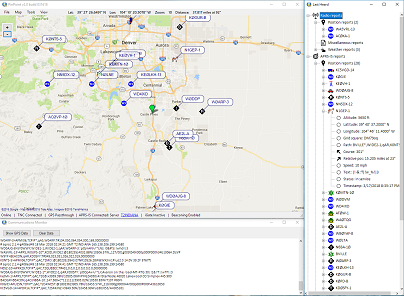
Official PinPoint APRS information and download ↗
GridTracker 2 FREEWINDOWSmacOSLINUX does not replace the decoder. It listens to decode information from WSJT-X or compatible programs and turns it into a live map, award progress, spot information, logbook context, weather and propagation clues.
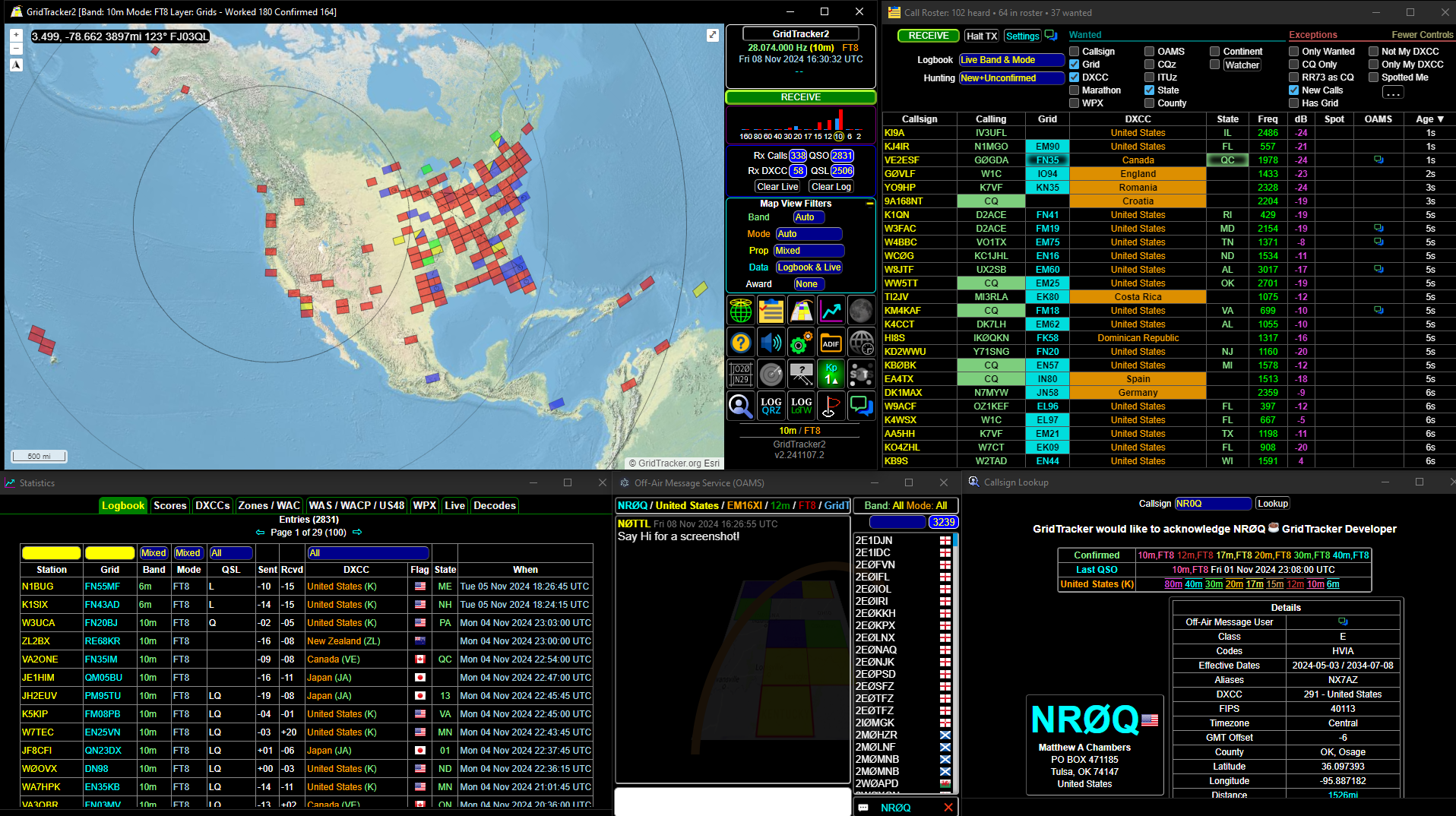
Official GridTracker 2 website and downloads ↗
WSJT-X official site · GridTracker 2 guide · See current reception reports on PSK Reporter
Keyboard conversation: JS8Call, VarAC and Digital Master
JS8Call FREE • OPEN SOURCEWINDOWSmacOSLINUXANDROID PRE-RELEASE uses a weak-signal technique derived from FT8 but changes the goal from a short automated exchange to keyboard messaging. Stations can call one another, relay messages and leave short traffic for later delivery.
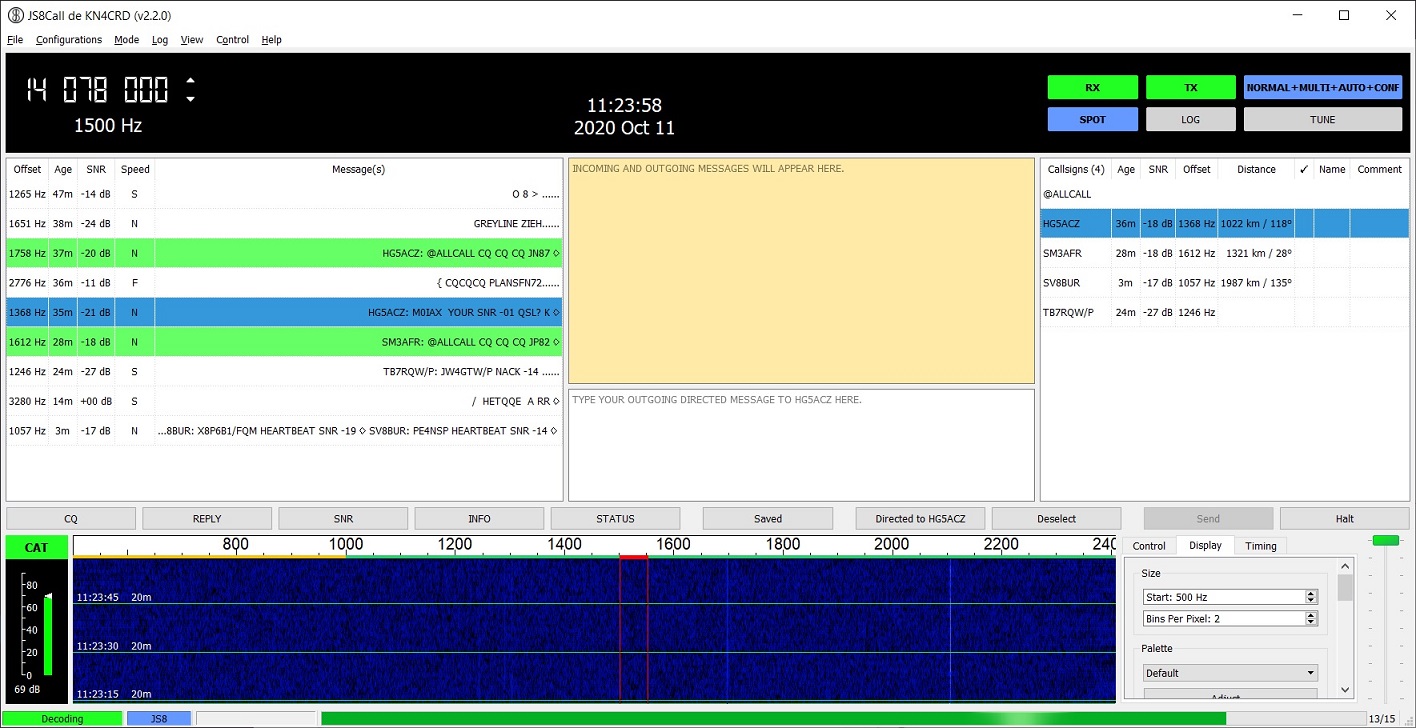
Official JS8Call website and downloads ↗
VarAC FREE APPWINDOWSLINUX VIA WINE—often misread as “VARA AC”—is a modern keyboard-to-keyboard chat and emergency-communications application that uses a VARA modem. It supports directed calls, beacons, files and more conversational operation than FT8.
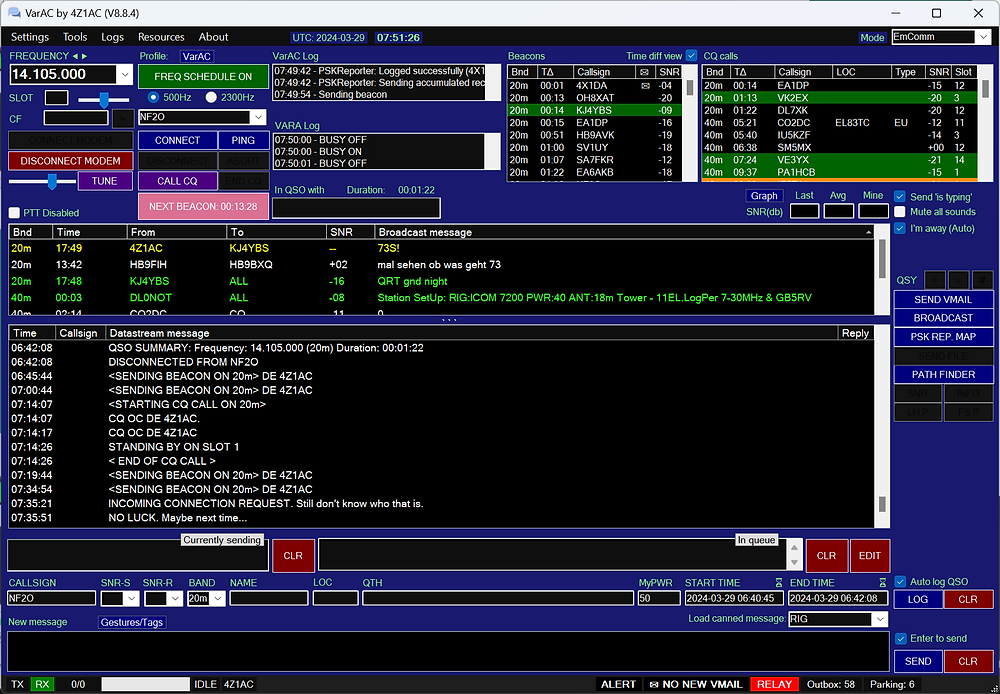
Official VarAC website and downloads ↗
Digital Master 780 (DM780) PAID • 30-DAY TRIALWINDOWS, part of Ham Radio Deluxe, provides a broad multi-mode operating screen for modes such as PSK, RTTY and other keyboard-oriented signals, with logging and radio control close at hand.
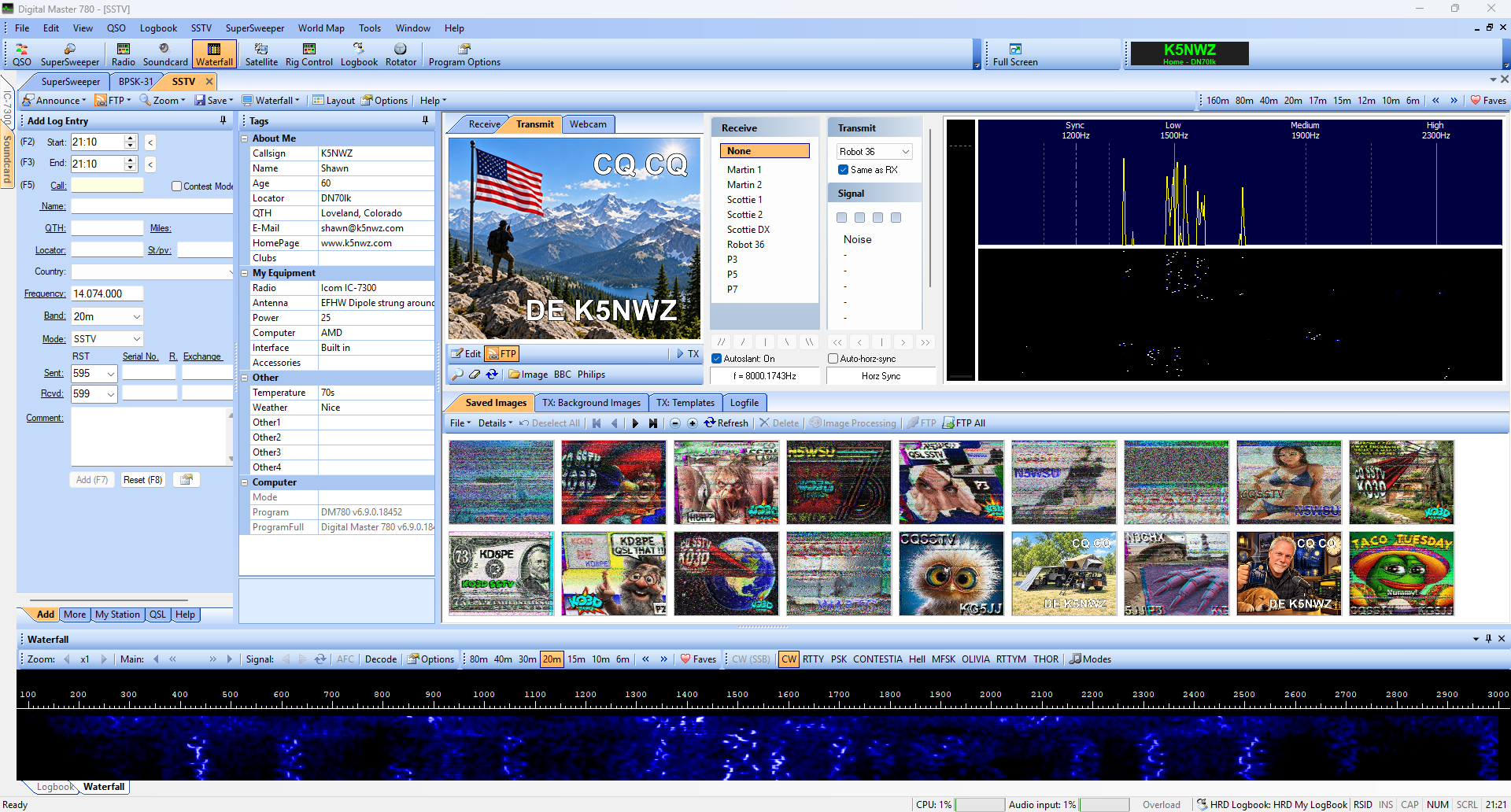
Official DM-780 information and trial ↗ • Watch SSTV signals on the K5NWZ SDR ↗
Radio email and fast data: Winlink Express and VARA FM
Winlink Express FREE • OPTIONAL SUPPORT KEYWINDOWS is the Windows client many amateurs use for radio email. Depending on your equipment and gateway, it can work through HF, VHF/UHF packet, VARA or an internet connection. It is widely used for emergency and field communications because messages can move when normal local infrastructure is limited.
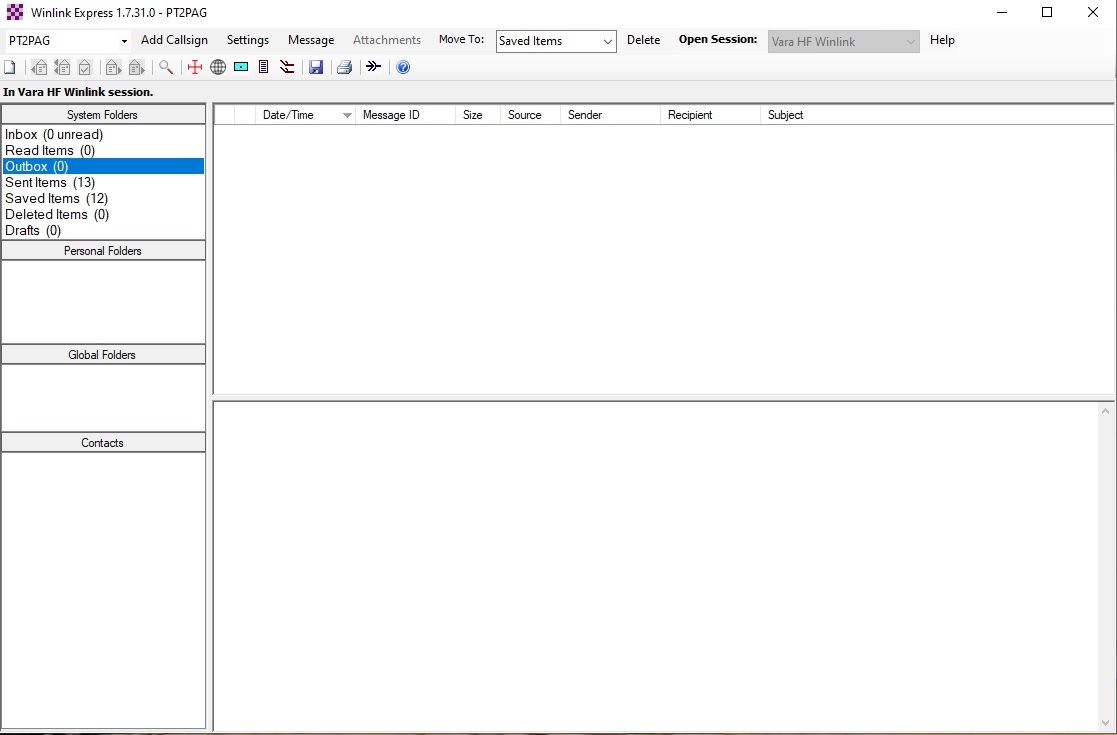
Official Winlink Express information and download ↗
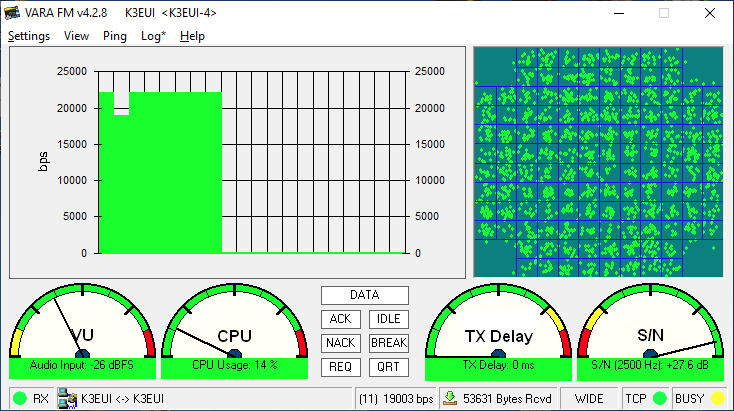
VARA FM FREE BASIC • PAID FULL SPEEDWINDOWS is a software modem for higher-speed data over VHF and UHF FM radios. Applications such as Winlink use it as the engine that converts data into radio audio and back again. VARA FM is the modem; Winlink Express is the application the operator sees.
Digital voice is more than one mode
This is the part of digital radio heard most often on VHF and UHF repeaters—but it is not limited to those bands. Each system has its own over-the-air signal, programming terms and optional network. The radios may look similar, but the modes are not automatically compatible with one another. AllStarLink and EchoLink are included at the end because newcomers encounter them beside these systems. They link voice through the internet, but the local radio path is normally conventional analog FM rather than a digital voice waveform.
| Mode | Where newcomers usually meet it | Programming words you will see | Common linking layer |
|---|---|---|---|
| DMR | VHF/UHF repeaters and hotspots | Color code, time slot, talkgroup, radio ID | BrandMeister, TGIF and other networks |
| System Fusion / C4FM | Yaesu-capable VHF/UHF repeaters | DN/VW, DG-ID, AMS | WIRES-X rooms and nodes |
| D-STAR | VHF/UHF/1.2 GHz repeaters; selected HF-capable radios | MYCALL, URCALL, RPT1, RPT2 | Gateways and reflectors |
| P25 | Local amateur repeaters and simplex | NAC, talkgroup, unit ID | Local systems and selected reflector networks |
| NXDN | Narrowband VHF/UHF repeaters and simplex | RAN, group ID, unit ID | NXDN reflector networks |
| M17 | Experimental VHF/UHF voice and data | Callsign, destination, channel | M17 reflectors |
| FreeDV | HF digital voice through an SSB radio | Mode, audio levels, USB/LSB | Direct radio contact; internet coordination is optional |
| AllStarLink | Analog-FM repeaters, remote bases and personal nodes | Frequency, offset, CTCSS/DCS, DTMF node number | AllStarLink voice-over-IP node network |
| EchoLink | Apps, analog-FM repeaters and simplex link stations | Validated callsign; or local frequency, offset and tone | EchoLink voice-over-IP network |
DMR
Digital Mobile Radio divides one 12.5 kHz radio channel into two alternating time slots. In amateur use, that lets repeaters carry organized conversations through talkgroups while still supporting local radio-to-radio and repeater operation.
DMR is an open ETSI standard rather than one manufacturer’s private amateur format. Amateur radios from Anytone, Motorola, Hytera, TYT, Radioddity and others can share compatible DMR channels, although menus, code plugs and optional features differ. A hotspot can provide personal access, but it does not replace learning how a local repeater is programmed.
Newcomer trap: the correct frequency alone is not enough; a wrong color code, slot or talkgroup can leave the radio silent.
Yaesu System Fusion & WIRES-X
System Fusion is Yaesu’s amateur digital system, using C4FM for digital voice and data. WIRES-X is not the radio waveform—it is the internet-linked network that connects compatible nodes, repeaters and rooms.
For practical amateur use, System Fusion and WIRES-X are the Yaesu ecosystem: you normally need a Yaesu C4FM-capable radio to use the digital side. Many Fusion repeaters also pass ordinary analog FM, so a non-Yaesu FM radio may still use the repeater when the operator has enabled analog service—but it cannot decode the C4FM conversation.
Think of it this way: C4FM is what travels by radio; WIRES-X is where that radio path can be linked.
Official System Fusion guide ↗ · WIRES-X guide ↗
D-STAR
D-STAR was created specifically for amateur radio and carries digital voice together with callsign, short-message or position data. It is commonly encountered on VHF/UHF and 1.2 GHz repeaters, while some all-band radios also provide D-STAR digital voice on HF.
D-STAR is an open protocol established by the Japan Amateur Radio League, so it is not technically exclusive to Icom. In the amateur market, however, most ready-to-use D-STAR radios have come from Icom, with selected Kenwood models also supporting it. For a newcomer shopping for a radio, the safe rule is to look specifically for D-STAR support rather than assuming any digital radio can use it.
Network language: gateways extend repeater reach; reflectors are shared destinations where multiple stations and repeaters can meet.
Official D-STAR introduction ↗
P25
Project 25 began as a public-safety interoperability standard, but amateurs also use surplus and commercial-grade equipment for conventional digital voice. Most ham operation you encounter will be P25 Phase 1 rather than a large trunked public-safety system.
P25 is not tied to one amateur-radio brand. Operators commonly repurpose equipment from Motorola, Kenwood, EF Johnson, Harris and other commercial manufacturers. That hardware can be rugged and excellent, but programming software, cables and feature licensing can make it less beginner-friendly than a radio designed specifically for amateur use.
Important: never assume a public-safety transmission is amateur activity; stay within amateur allocations and use only authorized systems.
NXDN
NXDN is a very narrowband digital voice and data system jointly developed by Icom and JVC Kenwood. Amateur operators use it on simplex, repeaters and linked reflector systems, especially where efficient channel use and commercial-quality radios are valued.
Icom and JVC Kenwood jointly developed NXDN, but the standard is used by equipment from multiple manufacturers. Unlike D-STAR, which was designed for amateur radio, NXDN began in the professional land-mobile world. Amateur use often depends on converted commercial radios, locally maintained repeaters and community reflector networks.
What it sounds like: clean digital speech until the signal becomes too weak to decode, then a sudden breakup rather than gradually increasing analog noise.
M17
M17 is an open digital voice and data protocol made by and for amateur-radio experimenters. It uses the open Codec 2 voice encoder, making it attractive to operators who want to study, build and modify the complete system instead of treating the mode as a sealed box.
M17 is deliberately manufacturer-neutral. Some operators use purpose-built equipment, while others add modem hardware or compatible firmware to supported radios. Availability is smaller than DMR or Fusion, but the open design makes the mode especially valuable for experimentation, education and home-built systems.
Best fit: builders, experimenters and anyone interested in the future of open amateur digital voice.
FreeDV: digital voice that belongs on HF
FreeDV turns speech into a narrow digital signal suited to HF propagation. A computer running the FreeDV application can work with an ordinary SSB transceiver, while newer hardware and radios may integrate some of the function. Unlike a repeater talkgroup system, the basic contact is still one HF station working another through the ionosphere.
FreeDV is not locked to a particular radio manufacturer. Many operators use a computer and audio interface with an ordinary SSB transceiver; others use dedicated modem hardware or radios with integrated support. Both stations must select a compatible FreeDV waveform, and careful audio-level adjustment matters because overdriving the transmitter can make the digital signal harder—not easier—to decode.
Why it matters here: digital voice is not just a VHF/UHF subject—and D-STAR is not the only path that reaches beyond those bands.
AllStarLink: linked radio without a digital RF mode
AllStarLink connects amateur repeaters, remote-base radios and personal nodes through the internet. The radio signal between you and the local node is usually ordinary analog FM. A small computer—often a Raspberry Pi—runs the AllStar software and passes the received audio to another node using voice over IP.
This makes AllStar useful to someone who already owns a basic analog handheld or mobile radio. If the local node uses a normal FM frequency, offset and access tone, no DMR, D-STAR or C4FM radio is required. The node owner chooses which distant nodes or hubs are connected, and operators may use DTMF commands to connect or disconnect when local rules allow it.
Keep the distinction clear: AllStar digitizes audio for transport between internet-connected computers, but the over-the-air signal heard by the local operator is normally analog FM.
Official AllStarLink project ↗ · How AllStar nodes work ↗
EchoLink: amateur radio connections through the internet
EchoLink connects licensed amateur operators, repeaters and radio-link stations through the internet. It can be used from a Windows computer or mobile device, or reached through a local EchoLink-enabled repeater or simplex link. The conversation is voice, not a keyboard data mode, and the local radio path is usually ordinary analog FM.
This is why EchoLink appears at the end of this list instead of beside DMR, D-STAR or C4FM. Those modes define a digital signal transmitted over the air. EchoLink is primarily a linking system: it moves amateur-radio audio between verified users and stations using voice over IP. A person may use the app without an RF radio for that connection, while a repeater user may talk through EchoLink with an ordinary analog handheld.
To use a local radio link: program the repeater or simplex frequency, offset and CTCSS/DCS tone just as you would for normal analog FM. The remote EchoLink connection is handled by the linked station.
Official EchoLink website ↗ · Beginner questions and validation ↗
Maps and station activity: APRS PropView, PinPoint APRS and GridTracker 2
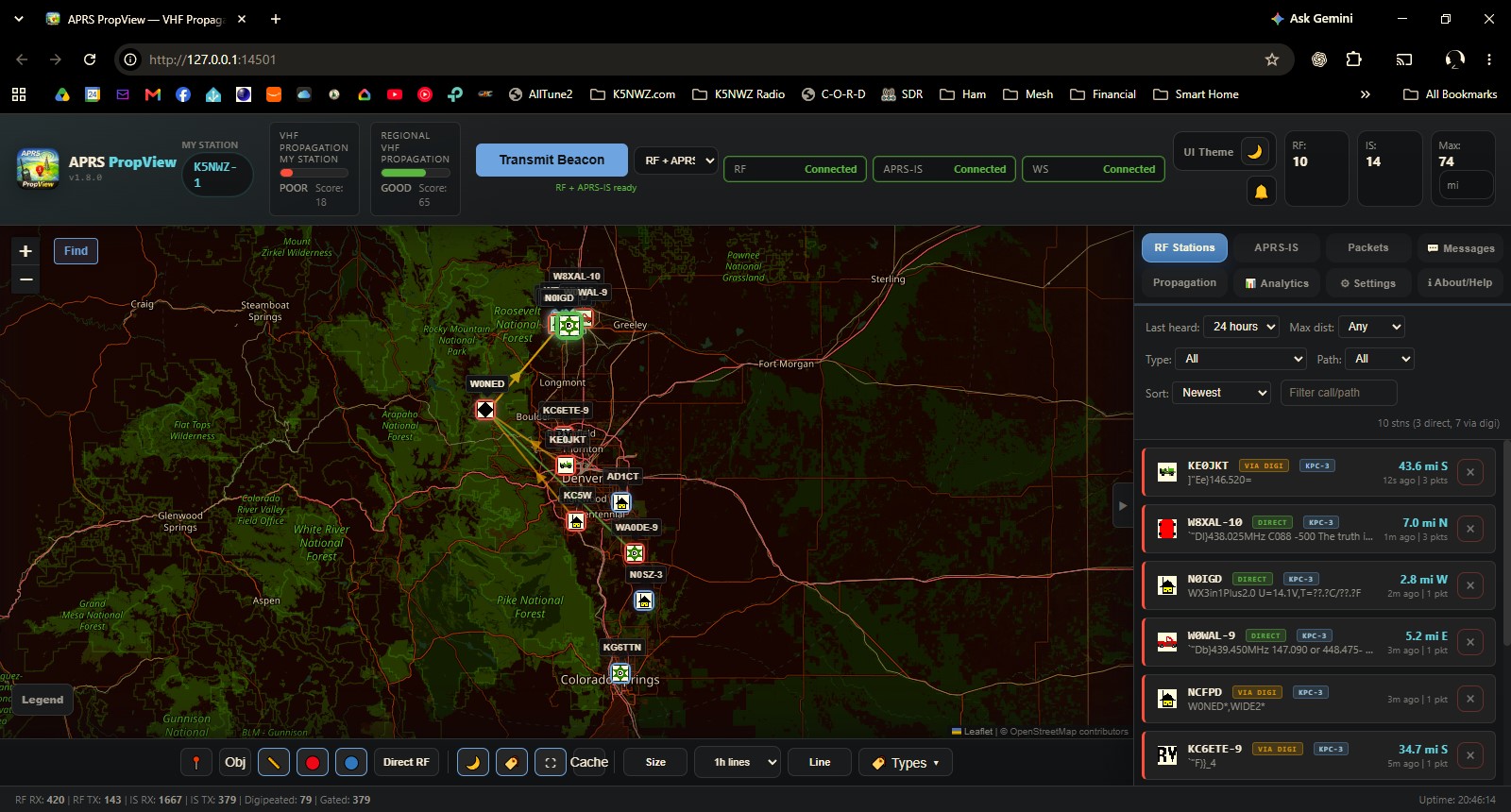
APRS PropView FREE • OPEN SOURCEWINDOWSmacOSLINUXWEB UI organizes APRS station and path information into a visual view of position reports, movement and radio reach. It helps turn short APRS packets into a map that a newcomer can explore.
Official APRS PropView project and releases ↗
GridTracker 2 FREE does something similar for weak-signal activity: it adds maps, grids, worked-status and contextual information to FT8/FT4 decodes.
Parks and radio control: POTA Cat
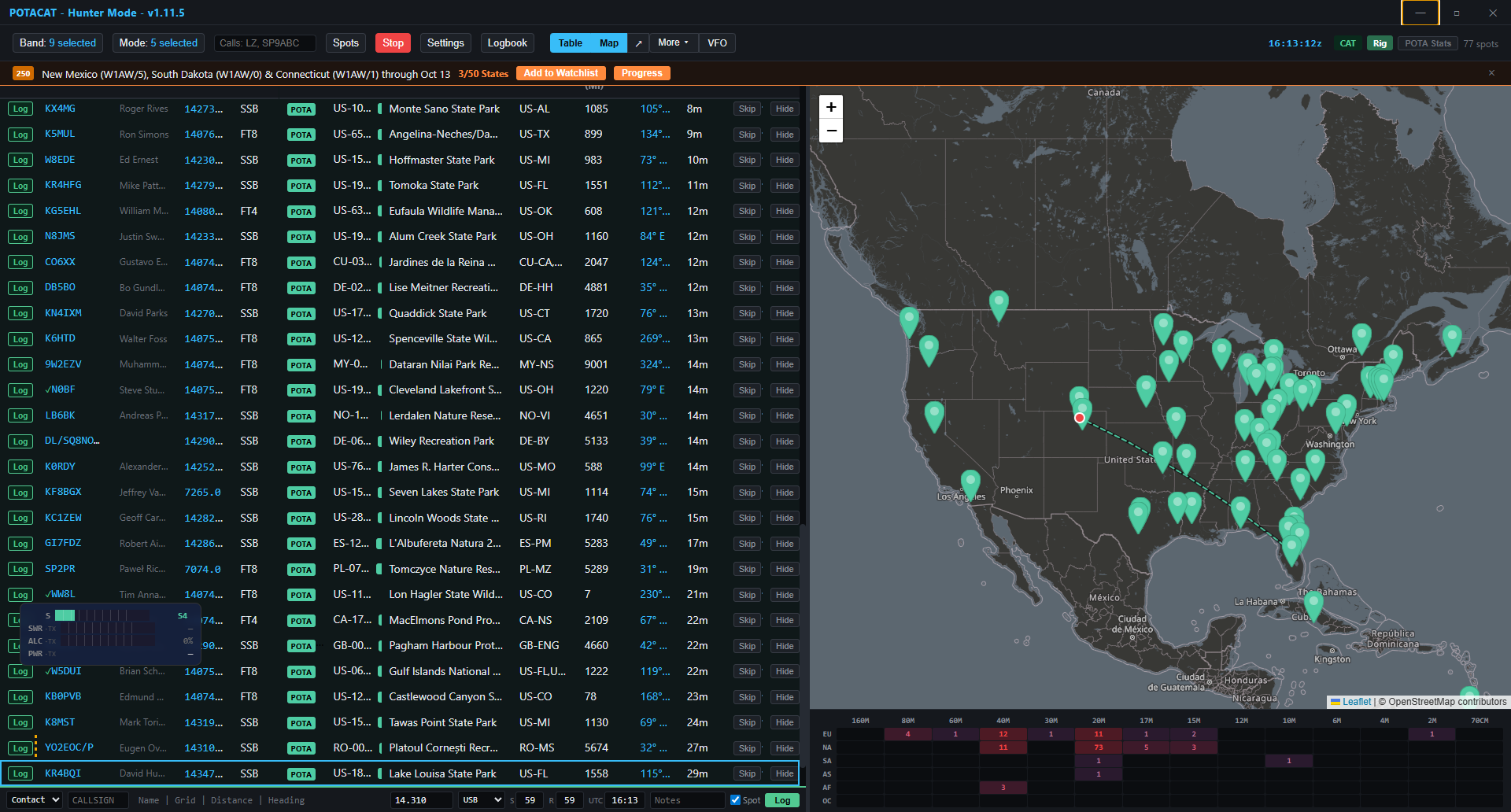
POTA Cat FREE • OPEN SOURCEWINDOWSmacOSLINUXiOS COMPANIONANDROID COMPANION is aimed at Parks on the Air operating. It brings activation information, radio CAT control and operating aids into a field-friendly workflow. The value is not a new over-the-air mode; it is reducing the number of windows and repeated settings needed during an activation.
Official POTA Cat website and downloads ↗
Morse code decoding: CW Skimmer
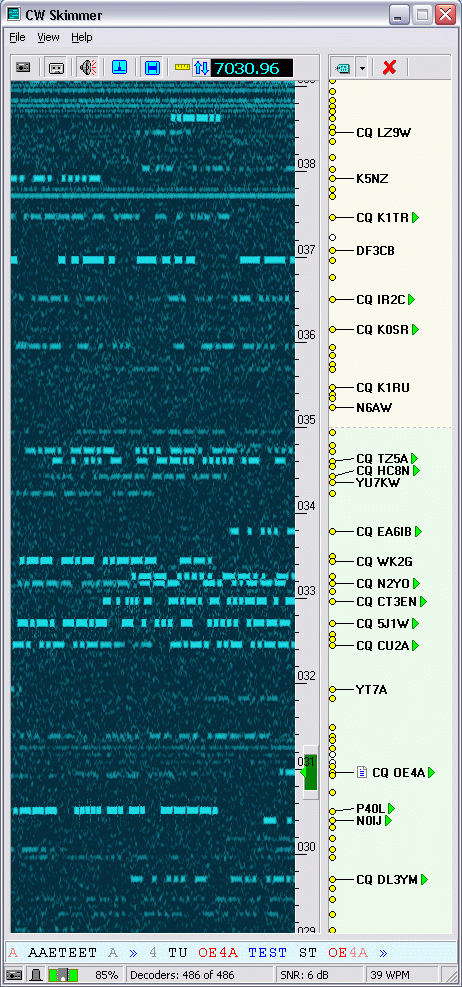
CW Skimmer PAID • TRIAL AVAILABLEWINDOWS visually monitors a slice of spectrum and decodes multiple Morse-code signals at once. It is useful for learning what activity is present, locating callsigns and understanding how many signals can occupy a narrow CW band segment.
Pictures over radio: EasyPal and SSTV
EasyPal FREEWINDOWS sends digital images using DRM-style techniques. Unlike traditional analog slow-scan television, a successfully decoded EasyPal picture can arrive with clean digital detail; a weak or incomplete transmission may fail in blocks rather than merely becoming snowy.
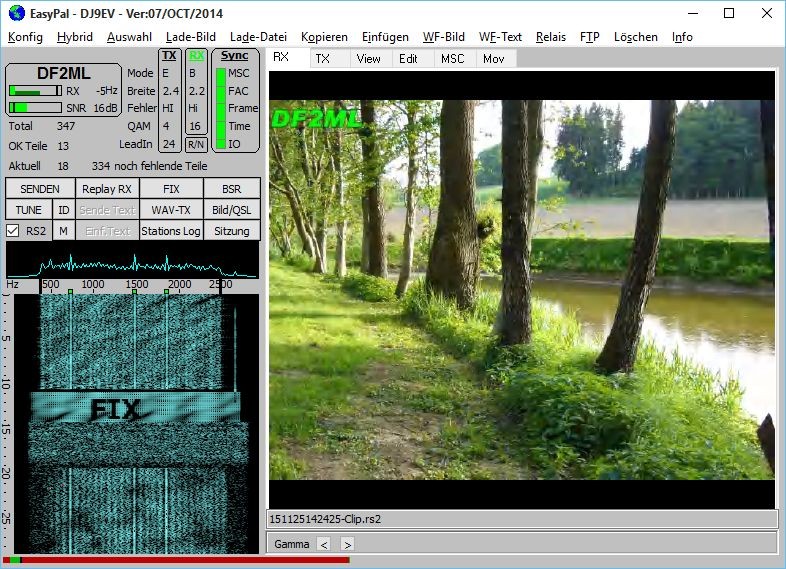
EasyPal legacy project information ↗
For traditional picture modes, visit the K5NWZ Slow Scan TV guide, which also connects visitors to the live SDR workflow.
Your first FT8 contact
FT8 timing is strict. Keep the computer clock accurate before troubleshooting anything else.
Select FT8 in WSJT-X and use its band menu so the radio lands on the established activity frequency.
You want a healthy receive level without clipping. On transmit, avoid driving the radio into ALC compression.
Watch several cycles. Confirm callsigns appear and learn the rhythm before enabling transmit.
What the common controls mean
| Control | Plain-English meaning |
|---|---|
| Monitor | Start decoding received audio. |
| Enable Tx | Allow the program to transmit at the next appropriate time slot. |
| Rx / Tx frequency | The audio position inside the displayed passband—not a completely different radio band. |
| Signal report | How far the decoded signal sits above or below the noise level, expressed in dB. |
Try FT8 live on 20 meters
FT8 is one of the most active weak-signal digital modes. The direct link below opens the live K5NWZ receiver at 14.074 MHz in USB mode with the FT8 decoder selected. You may see narrow signal traces on the waterfall and decoded callsigns when stations are transmitting.
Live resources
- PSK Reporter — see where digital signals are being received.
- WSPRnet — explore propagation reports from low-power WSPR stations.
- Parks on the Air — view current activations and spots.
- K5NWZ Logbooks — see station contacts and activity.
Beginner checklist
- Use your callsign and grid square exactly as issued or calculated.
- Confirm the correct sound-card input and output before changing radio settings.
- Keep the computer clock synchronized for timed weak-signal modes.
- Start with low transmit power and clean audio. More drive is not automatically better.
- Know your license privileges and the band plan before transmitting.
- Decode and observe first. The waterfall and message window will teach you the operating rhythm.
Software note: Programs evolve. Always download radio software from its official project site and review the current documentation before connecting it to a transmitter.