Slow Scan TV
Images across the airwaves.
Send pictures through the air with Slow Scan Television
Slow Scan Television turns radio signals into pictures. This beginner-friendly guide shows what SSTV sounds and looks like, how images are received and decoded, and how you can explore real signals with the K5NWZ station.
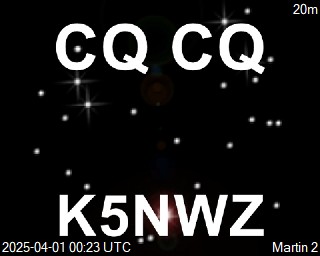
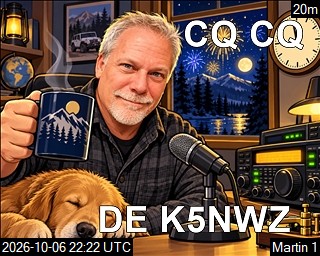
Most recent K5NWZ transmission
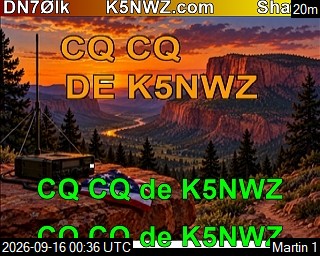
The image shown here is the most recently transmitted SSTV image from K5NWZ. The received-image gallery farther down the page shows pictures decoded by my station from other SSTV transmissions.
Transmit your SSTV CQ and see if I can pick it up. If my station receives it, it can appear in the received-image gallery within seconds. Refresh the page to check for updates. The ON-THE-AIR indicator shows the frequency my station is monitoring.
Browse the live 20-meter SSTV image gallery on CQ SSTV to see images being received by stations around the world, including K5NWZ when my transmissions are picked up.
Hear and Decode SSTV on the K5NWZ SDR
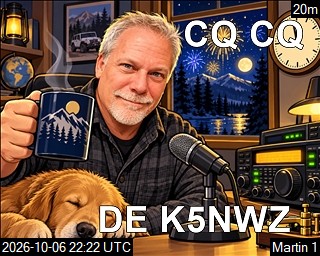
SSTV sends a picture as a sequence of changing audio tones. The image below is from the K5NWZ station, and the recording is a real Martin M1 SSTV transmission—not a simulated tone.
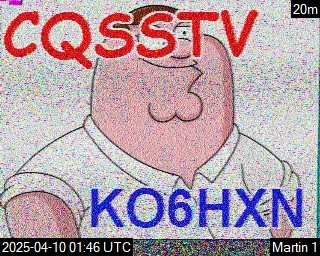
Listen to a real Martin M1 SSTV transmission:
Recording: Mysid, via Wikimedia Commons (CC BY 2.5 / CC BY-SA 3.0).
Decode one on OpenWebRX
- Open the K5NWZ guided SDR page in a second window.
- Choose SDR 1 HAM 20m / 14.000–14.350 MHz.
- Tune to 14.230 MHz and select USB.
- Open the DIG menu and choose SSTV.
- Leave the decoder open. When a transmission begins, the picture will build line by line.
All receiver-control instructions refer to the K5NWZ OpenWebRX interface.
Featured SSTV Software: Digital Master 780
Digital Master 780 (DM780), included with Ham Radio Deluxe, is the SSTV program I prefer and actively use at K5NWZ. It can receive and transmit SSTV as well as operate many other digital modes, and its SSTV workspace brings the image editor, receive and transmit controls, mode selection, signal display, saved-image library and waterfall together in one application.
PAID • 30-DAY TRIAL WINDOWS
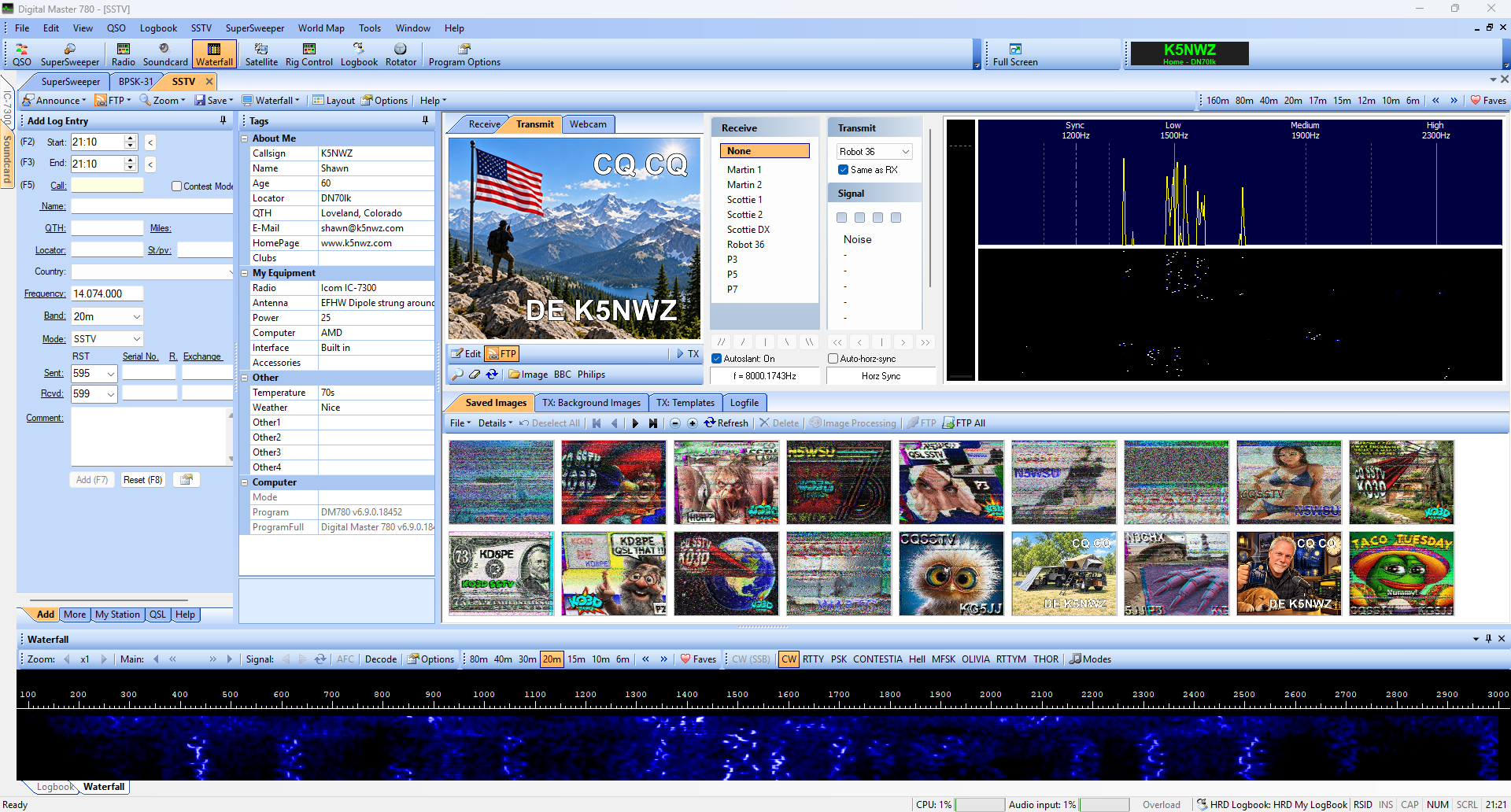
Official DM780 information and trial ↗ • Watch and decode SSTV on the K5NWZ SDR ↗
Another SSTV Option: MMSSTV
MMSSTV is a classic Windows program by Makoto Mori, JE3HHT, built specifically for Slow Scan Television. Connect your radio audio to the computer sound card and MMSSTV can turn the changing SSTV tones into a picture as it arrives. It can also prepare and transmit SSTV images when used with a properly connected amateur-radio station.
For a newcomer, MMSSTV is a focused alternative to the larger DM780 suite: its workspace is centered on SSTV receiving, mode selection, tuning, saved images and transmission controls. The official site also provides a primer, quick-start graphics, help files and audio test recordings.
FREE FOR AMATEUR RADIO USE WINDOWS SOUNDCARD SSTV
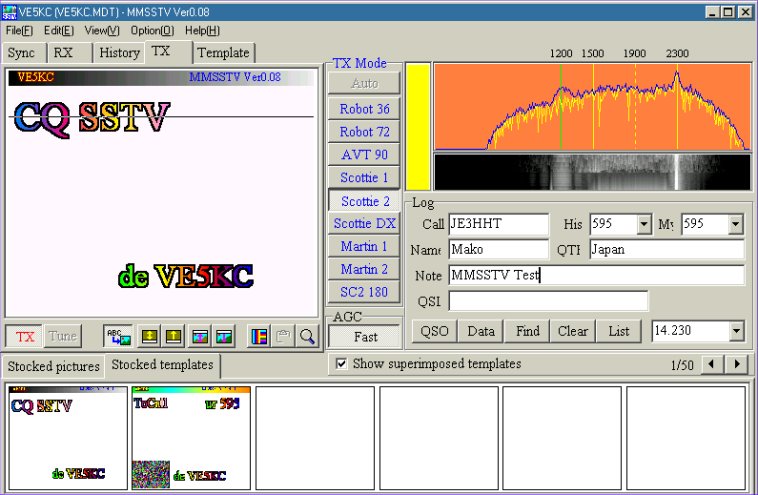
MMSSTV INFORMATION & DOWNLOAD ↗ WATCH SSTV ON THE K5NWZ SDR ↗
The K5NWZ SDR can display and decode a supported SSTV signal in the browser. MMSSTV is an additional Windows software choice for operators who want a dedicated station-side SSTV program.
Receive-Only SSTV: RX-SSTV
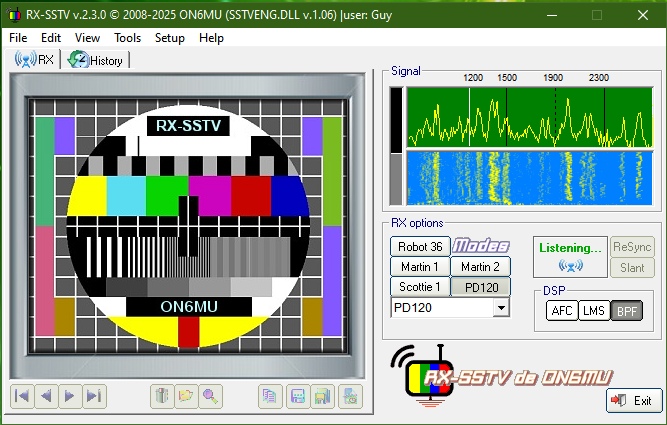
RX-SSTV by Guy Roels, ON6MU, is a free receive-only decoder for people who want to monitor SSTV without transmitting. That makes it especially approachable for shortwave listeners, students, unlicensed listeners and licensed operators who simply want a dedicated receiving program.
RX-SSTV automatically detects supported SSTV modes, saves received pictures, includes DSP and spectrum controls, supports multiple sound cards and shows a waterfall tuning indicator. Because the transmit section is intentionally omitted, there are no PTT or transmit-interface settings and no chance of accidentally keying a radio. It is also a practical choice for receiving SSTV events from the International Space Station.
FREEWARE WINDOWS RECEIVE ONLY
RX-SSTV INFORMATION & DOWNLOAD ↗ WATCH SSTV ON THE K5NWZ SDR ↗
The official RX-SSTV page lists version 2.3.1, released January 19, 2026, and describes Windows operation plus Linux use through Wine.
Recent Received Images
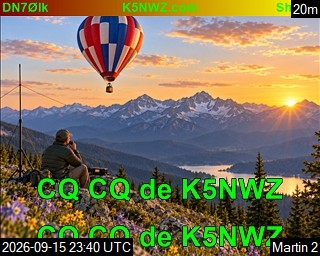
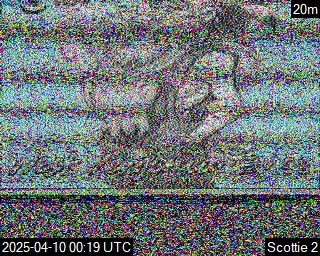
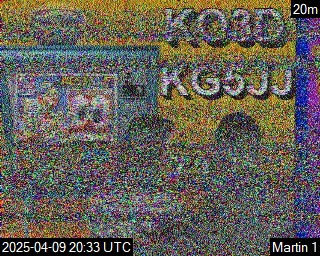
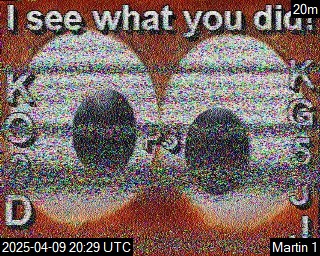
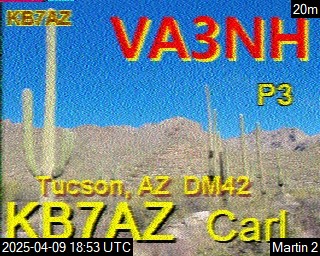
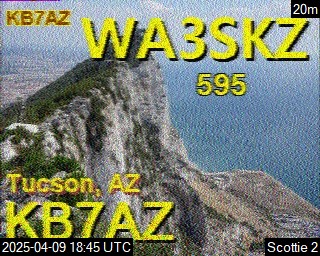
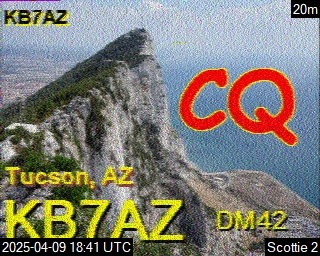
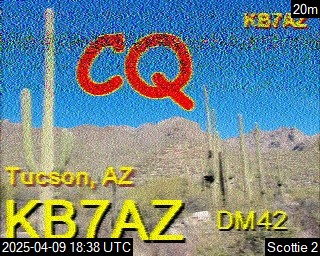
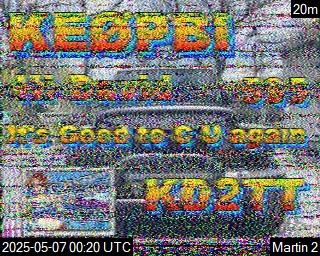
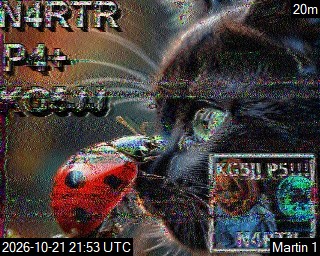
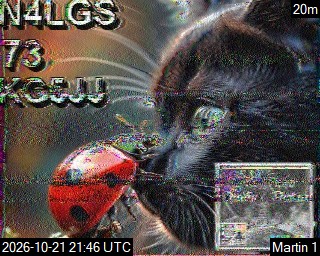
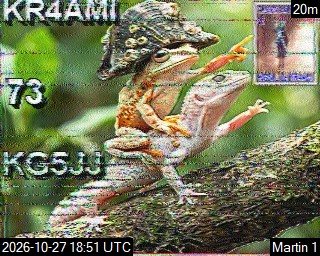
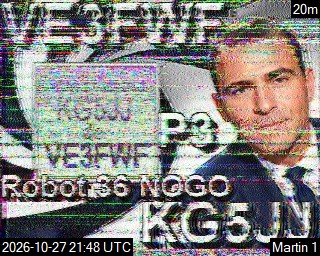
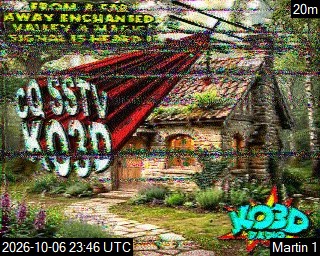
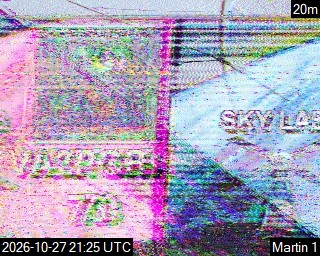
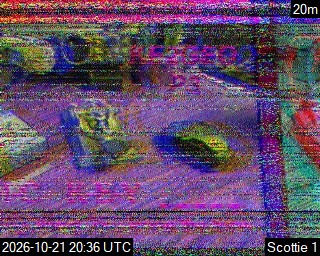
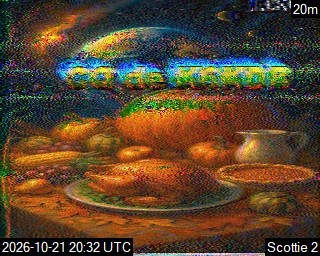
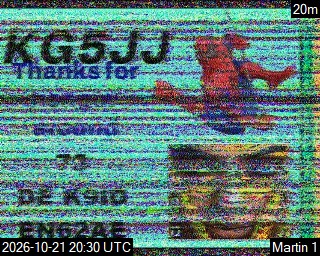
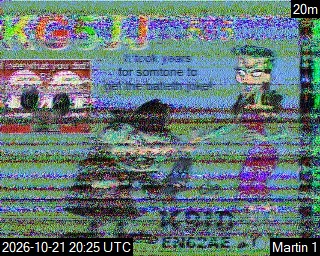
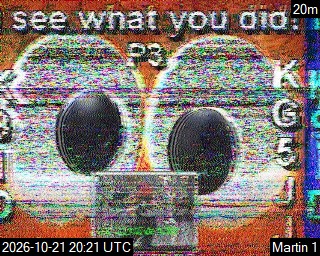
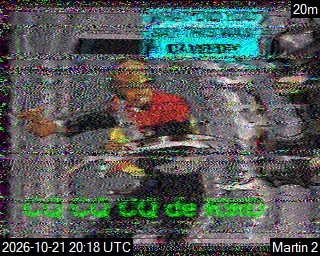
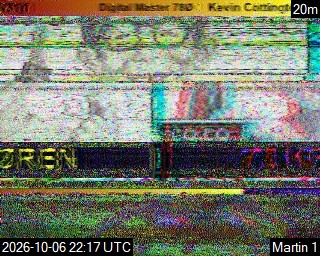
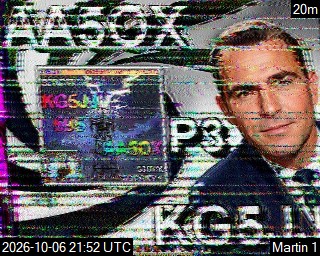
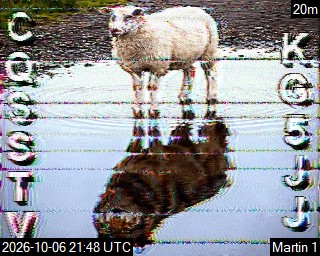
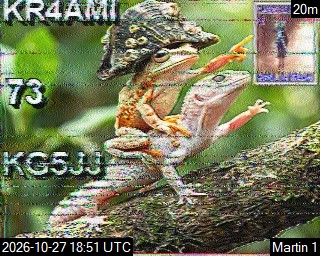
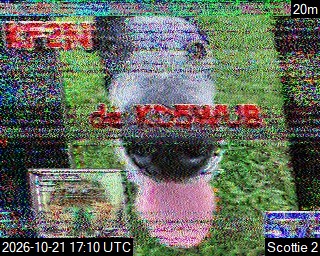
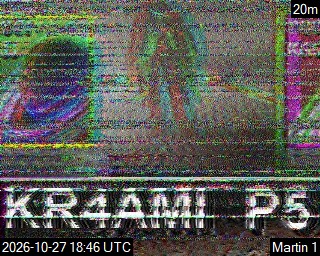
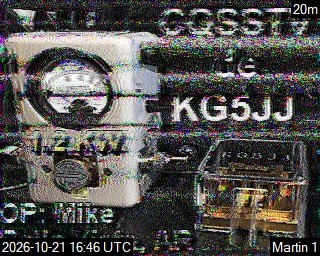
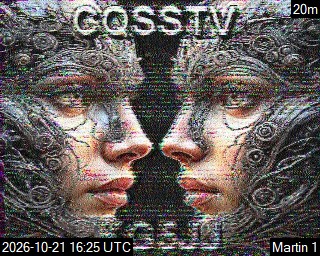
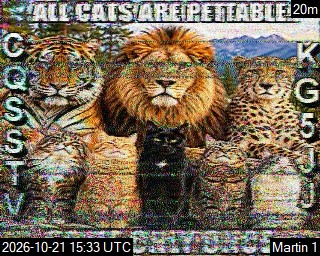
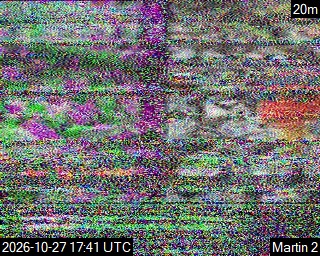
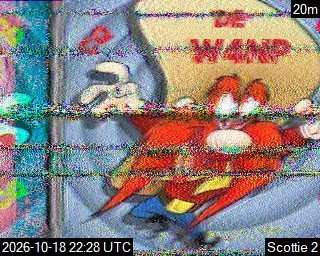
Hover over a thumbnail on a computer to enlarge it. The images stay on this page. Image quality depends on propagation: at night, the 20-meter band may be closed, so received images can be very degraded or may not appear at all. Daytime images are usually clearer.

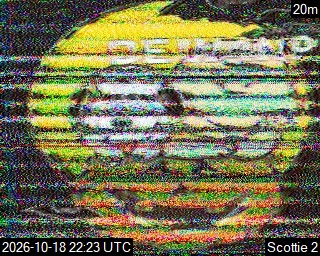
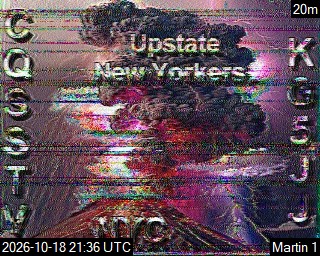
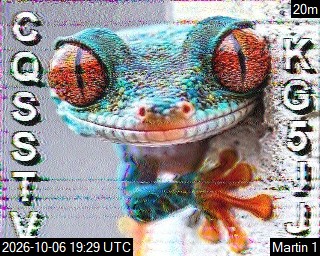
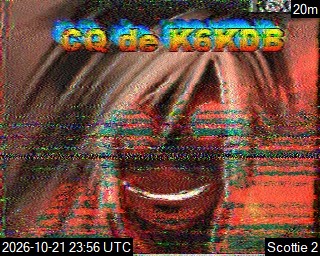
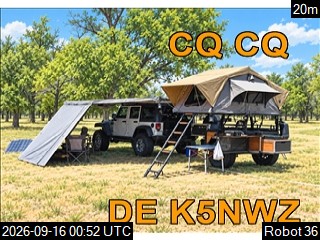
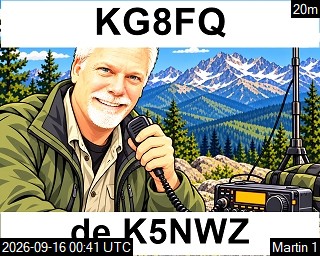
Recent Transmitted Images
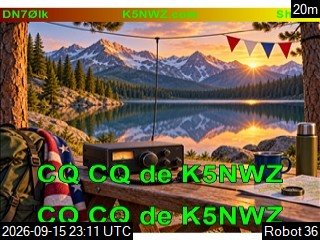
Hover over a thumbnail on a computer to enlarge it. The images stay on this page.