← Packet Radio guide and live traffic
LEARN • PRACTICE • THEN TRY RADIO
Your First Packet Message
Use this short lesson to understand the steps, then rehearse in the practice terminal below. You can practice here without a radio or amateur-radio license. A real transmission requires your licensed callsign, suitable equipment and a reachable station.
From Your VHF Radio to Your First Message
The example setup: a Windows computer, UZ7HO SoundModem, EasyTerm, a VHF FM radio, an antenna, and either the radio’s built-in USB audio with a USB data cable or a compatible external soundcard interface and radio cable. SoundModem handles the packet signals; EasyTerm is where you connect and type. Your exact audio and transmit-control settings depend on the radio and interface. If your radio has suitable built-in USB audio, you are already a big step ahead: you usually do not need another soundcard box. See the Icom, Yaesu and Kenwood examples and band-coverage notes.
Before you buy: have an experienced operator check unfamiliar used equipment. For equipment options and connection details, see the main equipment lesson.
Connect the equipment
Follow your radio and interface manuals. With an external interface, the connection is computer ↔ soundcard interface ↔ radio ↔ antenna. With built-in USB audio, use computer ↔ USB data cable ↔ radio ↔ antenna. Install any manufacturer driver in the order its instructions specify. Both paths need receive audio, transmit audio and a configured way to key PTT (push-to-talk).
Checkpoint: you know which audio device belongs to the radio or external interface and which cable matches your radio.
Set up SoundModem
Get SoundModem and EasyTerm from UZ7HO’s official page. Start SoundModem. In Settings → Devices, choose the radio’s built-in USB audio device or the external interface’s audio input and output, and the appropriate PTT method. For a USB-audio radio, also select USB as its data-audio source according to its manual. In Settings → Modems, choose the matching 1200-bps AFSK mode for this VHF example.
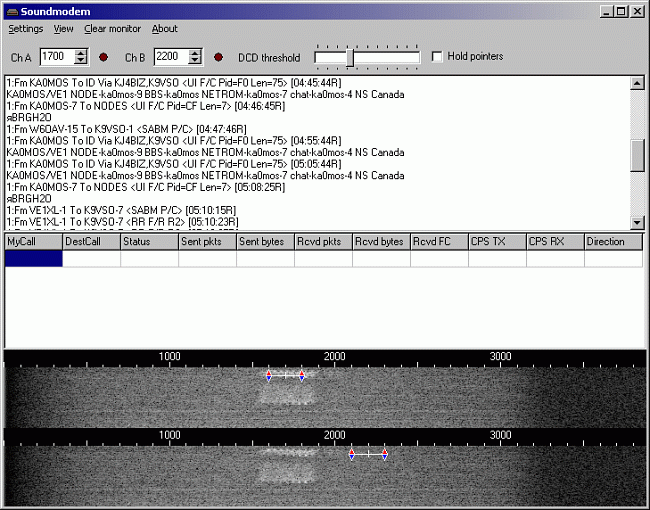
Developer screenshot from UZ7HO. Use the menus for settings, the text monitor for decoded packets, and the waterfalls for incoming audio. This is a reference image, not a recording of your station. Select it to enlarge; versions may look different. Checkpoint: you see incoming audio in the waterfall. If it stays blank, check the input device and receive cable.
Receive readable packets
Confirm a nearby station’s frequency and packet mode. K5NWZ uses 145.050 MHz simplex in Northern Colorado; both ends must be in radio range. Listen and adjust receive audio using the modem guide until callsigns and packet text appear. Elsewhere, begin with a local station confirmed by an operator.
Checkpoint: you see decoded callsigns, not just moving colors. If you hear packets but see no text, use the receive checklist.
Link EasyTerm to SoundModem
Keep both programs open. For this walkthrough, use the AGWPE connection. Enable SoundModem’s AGWPE server and note its port number. In EasyTerm’s station setup, enter your licensed terminal callsign and match that server’s host and port. When both programs run on your computer, the host is
127.0.0.1(localhost). A common AGWPE port is8000; match your actual setting.Checkpoint: EasyTerm is connected to the local modem. That software connection is separate from a radio connection to another station.
Request the radio connection
Check transmit audio and PTT using your equipment guides. In EasyTerm, choose Connect, confirm your own callsign, and enter the destination callsign. For a direct connection within K5NWZ’s NOCO coverage, use
K5NWZ-1. Wait for the connection confirmation and mailbox greeting. You do not type local KPC commands into SoundModem.Checkpoint: a connected-session window shows the remote mailbox greeting. A radio transmit light alone does not mean you connected. If no reply arrives, use the connection checklist. From outside local range, follow the routing lesson.
Send one short greeting
In the connected-session window, type
SP K5NWZand press Enter. When asked, enter a subject, then your message. Finish with/EXon a line by itself. Wait for the saved-message confirmation, then typeBto leave. Use the client’s disconnect control if a link remains open.Checkpoint: the remote mailbox confirms that it saved the message. It may be read later. The full terminal transcript shows example replies. At a different mailbox, use the recipient and commands its operator provides.
Need help? Ask in the packet-radio section of the K5NWZ Discord server. Include your radio, interface, programs and the last checkpoint you completed.
References: SoundModem v1.14 setup guide and W7TSC SoundModem and EasyTerm tutorial. Check your software version and equipment manuals; this is a setup guide, not a claim that every radio/interface combination has been tested at K5NWZ.
BROWSER PRACTICE • NO RF
Packet Radio Practice Terminal
This is a simulation. It does not connect to K5NWZ, WARS or your radio. No message is delivered. The exercise runs in your browser and resets when you reload. All incoming mail and bulletins are fictional; do not enter private information.
Choose one of five guided lessons below. Mailbox, WARS and node lessons start at a local KPC cmd: prompt. Recovery starts in an open mailbox. Troubleshooting uses imaginary equipment faults. SoundModem users make the initial connection in their client on real equipment; the remote mail commands are the same lessons. Real greetings, delays and menus vary.
Follow the hint below the terminal, one line at a time. The troubleshooting lesson uses CHECK, FIX, TEST and NEXT as lab-only actions; these are not commands to enter on real packet equipment.
Press Enter after each line. Type HELP for commands supported here. During message entry, /EX saves and the lab’s /ABORT cancels. “Practice Ctrl+C” returns to local commands; K resumes the open conversation. Choosing another lesson or restarting clears the practice session.
To improve these lessons, we count lab opens, lesson starts and completions. This recorder saves aggregate counts only; it does not save what you type. Do Not Track is respected.
Ready for the Real Thing?
Return to the equipment and setup guide, then try a short message with a reachable local station. For WARS, follow the real-session walkthrough. This lab practices a small set of commands; it does not test your audio, radio range, station availability or routing.
Lesson reviewed October 31, 2026. Found a mistake or a changed menu? Report it in the packet-radio section on Discord.